Apps
Upload a new app
If your user role allows it, you can add a new app by clicking on the Upload app button in the main page. A new form will show in which you can either click to select file or just drag and drop files from your computer on it.
You can select Apleno app files (.pgm) and Shiny/Dash/Streamlit/Gradio zipped apps. After selecting your file, click on Upload and the new app will appear on the main app listing.
App configuration
The configuration of the app will depend on how the app work and how you want people to access the app. You might want to take a look at links, apps allow personal instances setting, persistent mode, links visibility and links max users. Here are some common examples:
- Apleno Designer apps: Default app settings are generally the best for Apleno apps. You can create a link for easier or guest deployment. If your Apleno app is heavy (> 50 MB), we recommend turning on persistent mode.
- Dash/Streamlit/Shiny/Gradio apps: a common configuration for these apps is to set Allow personal instances to OFF, Persistent mode to Yes and create a single public or private link with Visibility set to Show on dashboard and Max users set to 0 (unlimited).
App listing
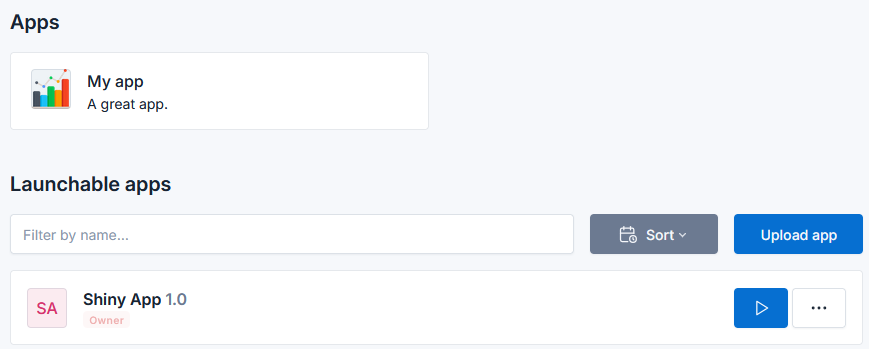
The app listing contains a search field at the top, and a button to choose how to sort the apps:
- Alphabetic sorts the apps by name;
- Recently used sorts the apps by the one you recently launched.
Apps appear in the dashboard with several information for each:
- The name of the app;
- Its icon or a default generated avatar using the name of the app;
- The version of the app as written in the last changelog line in the project file (Apleno) or from a DESCRIPTION file (Shiny/Dash/Streamlit/Gradio);
- The list of reasons why you have access to the app. In the My app 1.0 example above, the user can execute the app because they are the owner and because they belong to the PGM Solutions team which has access to the app.
The Play button will launch a personal instance of the app, and the "..." button will show a page containing all the app information.
Links
If you have access to links that are visible in the dashboard, you will see on the top of the listing a section with direct links to those apps:
App details
The details page for an app shows everything needed for managing it. On the left, you can choose which section you want to display.
Details
The Details section will show more information from the currently selected version of the app.
- The description;
- The author of the app;
- The owner who uploaded the app first;
- If the user seeing the page has
permission to edit the app:
- The internal ID of the app;
- The type of the app;
- The R and/or Python versions used for the app;
- If a virtual environment has been detected and its status;
- The currently running instances of the app. If any, a button will open a section showing more details on the instances.
After the details, some buttons will show:
- Start will start a personal instance;
- Permissions will open the permission form;
- Download will download the .pgm or .zip file of the app;
- Install/update environment will install or update the app environment;
- Update allows you to select a file for creating a new version of the app;
- Delete will delete the app and all its versions, links, cron jobs and files.
Read-only users will only see the Start button.
Changelog
The changelog section will show the changelog table as written in the ppro of the app for Apleno Designer apps.
Versions
Note
This section is only visible to developers with full access to the app.
Each app can have multiple versions. This allows developers to upload and test a new update of an app they made before setting it to "live". More precisely, every time a user clicks on the Update button in the details page, this will create a new version of the app that will be listed in the Versions section.
For each version you can see if it's the currently selected version (green checkmark), the language versions, the status of the virtual environment, the upload date and the user that uploaded this version.
The Actions button offers several options:
- Set as default to set this version as the selected one for users;
- Run app to run this specific version;
- Settings for this version settings;
- Download files to download the .pgm or .zip file of the version;
- Delete to delete the version and all its related files.
Version settings
An app version has several settings that can be changed with the Settings entry in the Action button of an app version. You can also override:
- The app name;
- The app version;
- The app author;
- The app description.
You can also add/update the app icon, select the R and Python version that will be used for the app, and the persistent mode.
Links
The links sections will list all the links for the app. See the Links guide page.
Cron jobs
This section will list all the cron jobs for the app. See the Cron jobs page.
Settings
In this section you can edit various settings about the app. Currently, it's mainly resources-oriented parameters.
The first settings control if an app can start by limiting its total possible instances, instances per IP and instances per user. For these settings, the global limits set in the administration panel still apply. Leaving a setting empty or setting it to 0 makes it unlimited, but the global settings still apply. If a single limit is exceeded, the instance will not start.
Example
Here is an example:
- Global max total instances set to 10.
- Global max total instances per IP set to 5.
- App total instances set to 7.
- App total instances per IP set to 10.
Every IP will be limited to 5 instances, with a maximum of 7 instances of this app across all users and IPs. Moreover, the server will never run more than 10 total instances. The App total instances per IP set to 10 has no effect because it is higher than the global setting set to 5.
The other resources options are for aborting the app if it exceeds some limit of RAM, CPU, CPU time or total execution time. These settings completely override the global settings.
Example
Here is an example:
- Global Max total RAM for each app set to 200 Mo.
- App Max RAM per instance set to 500 Mo.
This app will have a limit set to 500 Mo.
If Close on Disconnect is activated, it will abort the instances of this app as soon as the user quits the page of the instance. This is useful for dashboard-like apps.
Finally, Allow personal instances allows users to launch personal instances. This is useful when creating an app that will only be executed through links. This setting should then be disabled to prevent users from creating personal instances and to hide it from the launchable apps in the listing.