Installation (Windows)
This guide shows how to install Apleno Server on a Windows operating system.
Windows Versions
Apleno Server has been tested on Windows Server 2012 R2, 2016, 2019 and 2022 versions.
Prerequisites
Depending on the apps you will use on Apleno Server, R and/or Python must be installed.
Warning
The default browser in Windows Server before Server 2022 is Internet Explorer (IE). IE by default is in a "hard admin" mode with extended security features, like Javascript being disabled by default. This might impact your experience browsing the Internet. Also, IE might ask you for permission to whitelist a website before visiting it. If you don't want to struggle with this, download another browser like Google Chrome, or turn off IE Enhanced Security Configuration from the Server Manager screen.
Installation
Download Apleno Server with the link provided to you and double click on the downloaded file and click on Run. Select where you want to install Apleno and then click Next then Install.
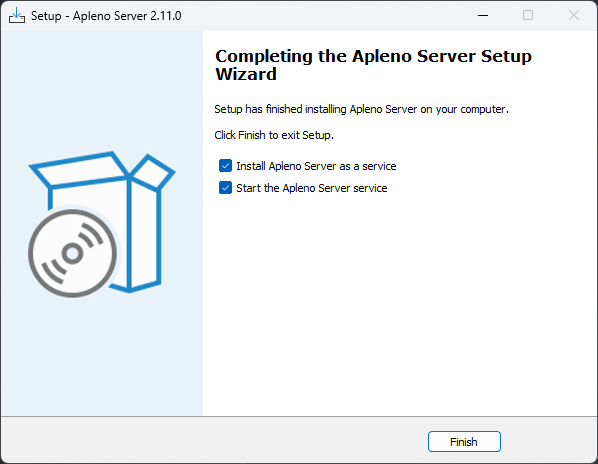
When finished, you can leave the two options checked to automatically install the service and start it. You can also uncheck them to edit the configuration file and change the default port and default main address of the website first.
Configuration
Apleno Server is configured with a .env file placed in the Apleno Server
folder. See the configuration file page for
the full list of settings. All changes require a
restart of the server.
Warning
You should at least set PORT and ROOT in the .env file to suit your
environment.
When Apleno Server is correctly running, you should land on the first-time wizard.
Start, restart and stop
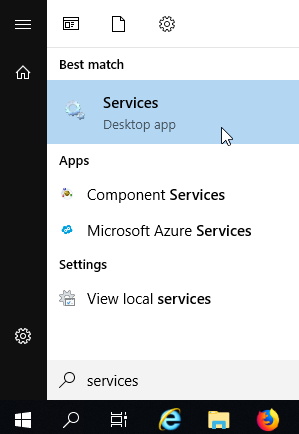
Apleno is installed as a service. You can see it by going in the Services screen of Windows:
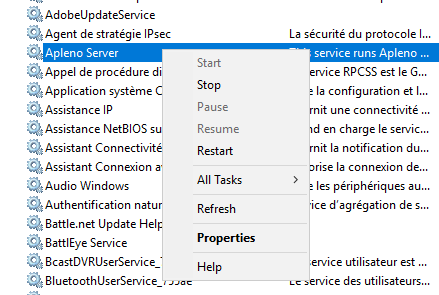
From there, you can stop, restart, start and with right-click then Properties you can choose how the server starts on Windows startup.
Windows Firewall
Some ports need to be open for Apleno to work from outside. This includes the 80 port for HTTP but also the port 443 for HTTPS if you want Apleno Server to serve on HTTPS directly.
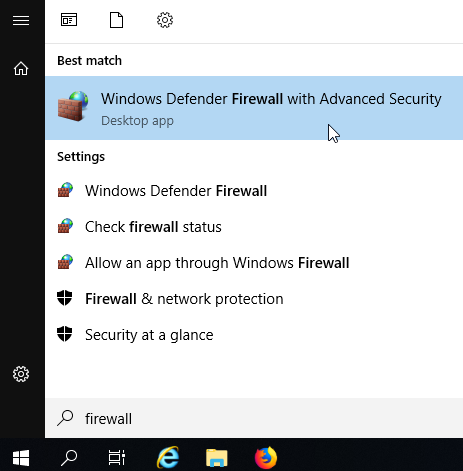
Go to the Firewall with advanced security:
Right click on Inbound Rules on the right panel and select New Rule...:
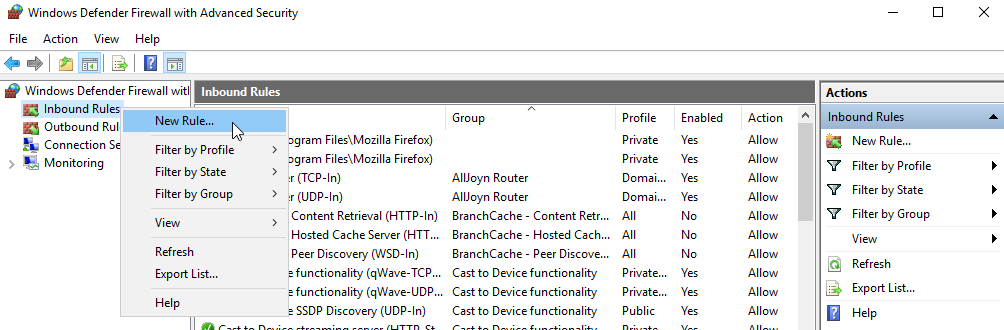
In the wizard dialog:
- Select Port in the Rule step;
- Select TCP in the Protocol and Ports step, and enter
80for HTTP,443for HTTPS or80, 443for both; - Select Allow the connection in the Action step;
Ports are now opened!
Uninstall
To uninstall Apleno Server, go to apleno-server folder and double click on the file windows-uninstall.bat. You might need to go to the Windows' Services screen to stop the apleno-server service (See above). You can then delete the apleno-server folder.