Backups
Apleno Server can create backups of itself. You can access the backups page with Maintenance and then Backups.
Backups list
The backups page lists created backups. For each backup, you can see:
- The exact date and how much time it is from now;
- The content of the backup;
- Its size;
- A download button.
Info
Only the last 20 backups are shown. All backups are available in the backups/ folder of the Apleno installation folder.
Creating a backup
By clicking on the New backup button on the top right corner, a new modal appears to choose what will be saved. A backup can contain three things:
- The Apleno Server database (red icon), which contains user credentials, app details, permissions and server configuration;
- Uploaded apps (green icon): all uploaded app files;
- User files (blue icon): the personal user files.
The database is mandatory, but the uploaded apps and user files are optional. Select what you want the backup to save and click on Create.
Manual backup
See the CLI commands page to see how to make or restore a backup from a command line.
Automatic backup
Linux
On Linux, the cron system can be used. More information can be found on
the
cron page of Wikipedia. For example, a crontab file can be edited with
crontab -e, which will open a text editor. A line can be added:
This will make a full backup every day at one minute past midnight (00:01).
Windows
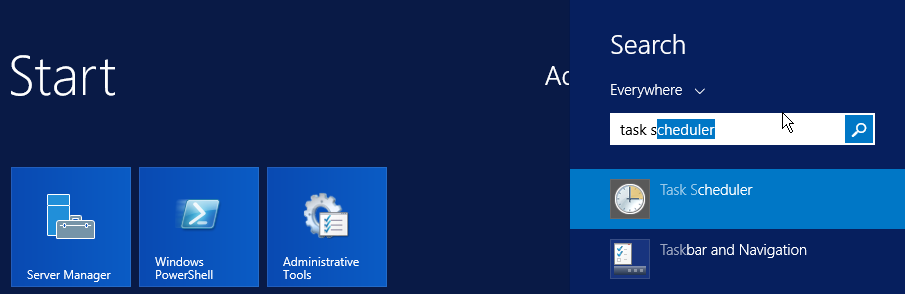
The Windows Task Scheduler can be configured for making automatic backups. In the start menu, search for the task scheduler:
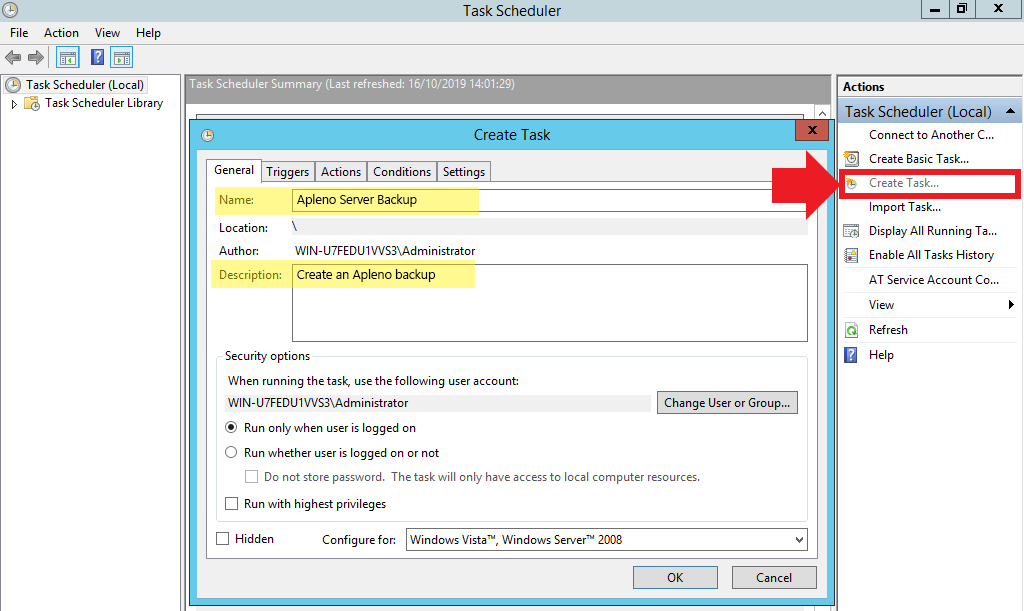
In the new window, click on Create Task... on the right menu, then fill a name and description:
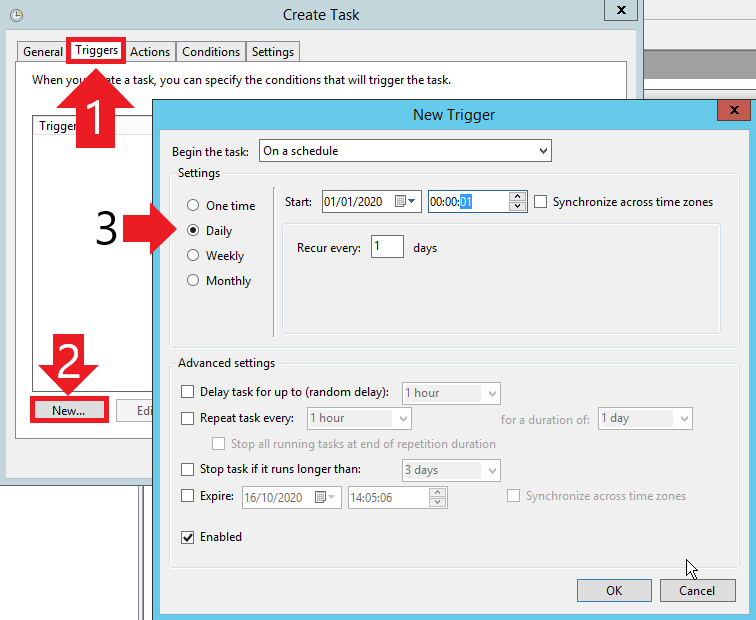
Then create a trigger by going in the Triggers tab, then the New... button at the bottom. In the new dialog, fill when you want your backup to occur:
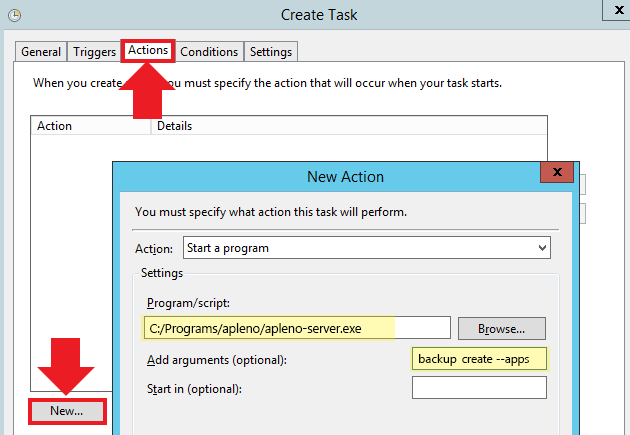
Once done, click on OK, then click on the Actions tab and New... for
creating a new action. The program is the path to the apleno-server.exe
executable file and the argument is backup create --apps --files:
Click on OK and the task is created!
Restoring a backup
To restore a backup, use the CLI command backup restore:
Full backup
Note
This is the recommended way to make a backup before updating Apleno Server.
A full backup contains all the data, the apps and also Apleno Server itself.
Create
Here are the steps to create a full backup:
- Stop the server;
- Copy the main Aploeno Server folder somewhere else, or zip it;
- Start the server again.
On Linux, you can compress the Apleno Server folder with:
Restore
If you want to restore a previous full backup:
- Stop the server;
- Delete all files and folders in the Apleno Server folder;
- Unzip or copy back all the files and folders from your full backup into the Apleno Server folder;
- Start the server again.